Securing Fliplet data sources
Securing Fliplet data sources
How to protect data sources with access rules, required-data validation, column-level restrictions, and custom JavaScript security rules.
Contents
Security rules
Access to Data Sources is secured via the Access Rules tab of the App Data section in Fliplet Studio. Each rule controls who can access the data source, what operations they can perform, and what conditions must be met.
Rules are evaluated from top to bottom. The first rule that grants access is used and evaluation stops — later rules are not checked. If no rules match, access is denied by default. If no rules are defined at all, all access is denied — data sources are locked down until you explicitly add rules.
For every operation, unmet require conditions skip that rule and evaluation continues. A later matching rule can grant access to the same read or write. Restrictive rules do not override broader grants. See Data requirements for details.
Access rule structure
Each access rule is a JSON object with the following properties:
| Property | Type | Required | Description |
|---|---|---|---|
type |
Array of strings | Yes | Operations this rule applies to: "select", "insert", "update", "delete" |
allow |
String or Object | Yes | Who can access: "all", "loggedIn", { "user": {...} }, or { "tokens": [...] } |
enabled |
Boolean | No | Whether the rule is active (defaults to true). Set to false to disable the rule without deleting it — disabled rules are skipped during evaluation |
include |
Array of strings | No | Allowlist of returned columns for reads, taking precedence over exclude. Does not enforce a write allowlist |
exclude |
Array of strings | No | Columns hidden from reads (unless include is present). Individual inserts and updates omit these fields before saving |
require |
Array | No | Data requirements that must be met (see Data requirements) |
appId |
Array of numbers | No | Restrict this rule to specific app IDs (applies to all apps if omitted) |
name |
String | No | Descriptive label for identifying the rule in Studio |
script |
String | No | Custom JavaScript code for advanced security logic. When present, allow and type are ignored — see Custom security rules |
Defining who can access
The allow property supports four modes:
All users (including anonymous):
{ "allow": "all" }
Logged-in users only:
{ "allow": "loggedIn" }
Specific users (filtered by session data). allow.user checks the logged-in user’s identity — use it with literal values to control who can access. To control which records they can access, use require instead (see Data requirements):
{
  "allow": {
    "user": {
      "Role": { "equals": "Admin" }
    }
  }
}
User filters support three operators: equals, notequals, and contains. Multiple conditions in the same user object are combined with AND logic. For OR logic, create separate rules instead.
Important: allow.user conditions check the logged-in user's session data — not data source records. Always use literal values here (e.g., "Admin", "Manager"). Although Handlebars syntax is supported, using it in allow.user (e.g., {{ user.[Department] }}) compares the user's field against itself — always true, granting access to any logged-in user. Handlebars templates are useful in require conditions, where they scope queries by the user's data. See Data requirements.
{
  "allow": {
    "user": {
      "Role": { "equals": "Manager" },
      "Status": { "notequals": "Inactive" }
    }
  }
}
Specific API token:
{
  "allow": {
    "tokens": [42857]
  }
}
Restricting columns
For reads, use include to allow specific returned columns or exclude to hide columns. If both are specified, include takes precedence. Without either, all columns are returned. For individual inserts and updates, exclude removes named fields before saving; include does not restrict writes. For an exact write allowlist, validate the proposed payload in a custom security rule.
{
  "type": ["select"],
  "allow": "loggedIn",
  "exclude": ["Password", "SSN", "Salary"]
}
Security note: Always exclude privilege fields (e.g., Admin, Role, Permissions) from rules that allow logged-in users to insert or update records. Otherwise, users can escalate their own privileges.
Example: role-based access with protected fields
This example shows an “Employees” data source where admins have full access, regular users can read records (without sensitive fields), and can only update their own record or insert records with a non-privileged role.
Data source columns:
| First Name | Role | Department | Salary | Password | Admin | Permissions | |
|---|---|---|---|---|---|---|---|
| alice@acme.com | Alice | Admin | Engineering | 150000 | ••••• | Yes | all |
| bob@acme.com | Bob | User | Marketing | 85000 | ••••• | No | read |
| carol@acme.com | Carol | User | Engineering | 95000 | ••••• | No | read |
Security rules:
[
  {
    "type": ["select", "insert", "update", "delete"],
    "allow": { "user": { "Role": { "equals": "Admin" } } },
    "enabled": true
  },
  {
    "type": ["select"],
    "allow": "loggedIn",
    "exclude": ["Password", "Salary"],
    "enabled": true
  },
  {
    "type": ["update"],
    "allow": "loggedIn",
    "require": [
      { "Email": { "equals": "{{user.[Email]}}" } }
    ],
    "exclude": ["Role", "Admin", "Permissions"],
    "enabled": true
  },
  {
    "type": ["insert"],
    "allow": "loggedIn",
    "require": [
      "Email",
      "First Name",
      { "Email": { "equals": "{{user.[Email]}}" } },
      { "Role": { "equals": "User" } }
    ],
    "exclude": ["Admin", "Permissions"],
    "enabled": true
  }
]
Queries that succeed:
When Alice (Admin) is logged in, the first rule matches — she has full access to all records and columns:
// JS API — Alice reads all records including sensitive fields
const connection = await Fliplet.DataSources.connectByName('Employees');
const allRecords = await connection.find();
// Returns all 3 records with all columns including Salary and Password
// REST API equivalent
POST /v1/data-sources/123/data/query
Auth-token: <Alice's token>
Content-Type: application/json

// "type" here is the REST API operation type, not a security rule field
{ "type": "select" }

// Response (200 OK): all entries with all columns
When Bob (User) is logged in, the second rule matches for reads — he can see records but Password and Salary are excluded:
// JS API — Bob reads records (sensitive columns automatically excluded)
const connection = await Fliplet.DataSources.connectByName('Employees');
const records = await connection.find();
// Returns all 3 records, but each record is missing Password and Salary
// e.g. { Email: "alice@acme.com", "First Name": "Alice", Role: "Admin", Department: "Engineering", Admin: "Yes", Permissions: "all" }
Bob can update his own record (the third rule checks the stored record’s email):
// JS API — Bob updates his own name
const connection = await Fliplet.DataSources.connectByName('Employees');
await connection.update(456, {
  Email: 'bob@acme.com',
  'First Name': 'Robert'
});
// Succeeds: the stored Email matches Bob's session; protected fields are excluded
// REST API equivalent
PUT /v1/data-sources/123/data/456
Auth-token: <Bob's token>
Content-Type: application/json

{ "Email": "bob@acme.com", "First Name": "Robert" }

// Response (200 OK): updated entry
Queries that fail:
When a query is denied, the API responds with HTTP status 400 and a JSON error body. The message field changes based on the denied operation — for example, "do not allow this app to read data" for selects, or "do not allow this app to insert data" for inserts:
{
  "message": "The security rules for the Data Source \"Employees\" do not allow this app to read data.",
  "type": "datasource.access",
  "payload": { "dataSourceId": 123 }
}
In the JS API, the promise is rejected with this error object. The message adapts to include the data source name and the specific operation that was denied (read, insert, update, or delete). The type is always "datasource.access" and payload.dataSourceId identifies the data source.
// Bob tries to update another user's record — fails
// (The stored Email does not match Bob's session, regardless of the submitted Email)
await connection.update(789, {
  Email: 'carol@acme.com',
  'First Name': 'Carolina'
});

// Bob tries to escalate his own role — fails
// (Role is excluded from the update rule, so it cannot be written)
await connection.update(456, {
  Email: 'bob@acme.com',
  Role: 'Admin'
});

// Bob tries to insert a record with an admin role — fails
// (the insert rule requires Role: "User")
await connection.insert({
  Email: 'bob@acme.com',
  'First Name': 'Bob Clone',
  Role: 'Admin'
});

// Bob tries to delete a record — fails
// (no delete rule matches for non-admin users)
await connection.removeById(789);
Example: department-scoped access
In this example, managers see all records for their department, regular users only see their own record, and inserts are restricted to the user’s department. Department scoping is enforced through require conditions on the query, not through allow.user (which checks the user’s identity, not the data being accessed).
Data source columns:
| Name | Role | Department | Salary | ManagerNotes | |
|---|---|---|---|---|---|
| alice@acme.com | Alice | Manager | Engineering | 150000 | Top performer |
| bob@acme.com | Bob | User | Engineering | 85000 | |
| carol@acme.com | Carol | User | Marketing | 95000 | |
| dave@acme.com | Dave | Manager | Marketing | 140000 | Needs training |
Security rules:
[
  {
    "type": ["select"],
    "allow": {
      "user": { "Role": { "equals": "Manager" } }
    },
    "require": [
      { "Department": { "equals": "{{user.[Department]}}" } }
    ],
    "exclude": ["Salary"],
    "enabled": true
  },
  {
    "type": ["select", "update"],
    "allow": "loggedIn",
    "require": [
      { "Email": { "equals": "{{user.[Email]}}" } }
    ],
    "exclude": ["Salary", "ManagerNotes"],
    "enabled": true
  },
  {
    "type": ["insert"],
    "allow": "loggedIn",
    "require": [
      "Name",
      { "Department": { "equals": "{{user.[Department]}}" } },
      { "CreatedBy": { "equals": "{{user.[Email]}}" } }
    ],
    "exclude": ["Role", "Admin"],
    "enabled": true
  }
]
The first rule uses allow.user to check the user’s role (a literal match — “is this user a Manager?”) and require to enforce department scoping on the query (the where clause must include the user’s own department). This combination ensures only managers can use the rule and they can only query their own department’s data.
Queries that succeed:
When Alice (Manager, Engineering) is logged in, the first rule matches — she is a Manager, and her query includes Department: 'Engineering' which satisfies the require condition:
// JS API — Alice reads all Engineering records
const connection = await Fliplet.DataSources.connectByName('Staff');
const records = await connection.find({
  where: { Department: 'Engineering' }
});
// Returns Alice and Bob's records, excluding Salary
// e.g. { Email: "bob@acme.com", Name: "Bob", Role: "User", Department: "Engineering", ManagerNotes: "" }
// REST API equivalent
POST /v1/data-sources/123/data/query
Auth-token: <Alice's token>
Content-Type: application/json

{ "type": "select", "where": { "Department": "Engineering" } }

// Response (200 OK): Alice and Bob's entries, Salary excluded
When Bob (User, Engineering) is logged in, the first rule does not match (wrong role). The second rule matches — he must filter by his own email:
// JS API — Bob reads his own record
const connection = await Fliplet.DataSources.connectByName('Staff');
const records = await connection.find({
  where: { Email: 'bob@acme.com' }
});
// Returns Bob's record only, excluding Salary and ManagerNotes
Bob can insert a record in his own department:
// JS API — Bob creates a record in Engineering
await connection.insert({
  Name: 'New Hire',
  Department: 'Engineering',
  CreatedBy: 'bob@acme.com'
});
// Succeeds — all require conditions are met, Role and Admin are excluded from writes
// REST API equivalent (Fliplet uses PUT for both inserts and updates on this endpoint)
PUT /v1/data-sources/123/data
Auth-token: <Bob's token>
Content-Type: application/json

{ "Name": "New Hire", "Department": "Engineering", "CreatedBy": "bob@acme.com" }

// Response (200 OK): new entry
Queries that fail:
// Alice (Manager) tries to read Marketing records — fails
// (the require condition demands Department matching Alice's own department "Engineering";
// "Marketing" does not match, so the first rule is skipped; no other rule grants broad access)
await connection.find({
  where: { Department: 'Marketing' }
});

// Bob tries to read all records without filtering by email — fails
// (the second rule requires Email matching Bob's session; without a where clause,
// the require condition is not met, the rule is skipped, and no subsequent rule grants access)
await connection.find();

// Bob tries to read Alice's record — fails
// (Email does not match Bob's session)
await connection.find({
  where: { Email: 'alice@acme.com' }
});

// Bob tries to insert a record in Marketing — fails
// (Department does not match Bob's department "Engineering")
await connection.insert({
  Name: 'Spy',
  Department: 'Marketing',
  CreatedBy: 'bob@acme.com'
});

// Bob tries to insert with a different CreatedBy — fails
// (CreatedBy must equal Bob's email)
await connection.insert({
  Name: 'Fake',
  Department: 'Engineering',
  CreatedBy: 'alice@acme.com'
});
Data requirements and query validation
The require property defines conditions that incoming queries must satisfy. This is not the same as querying data — it controls how queries are assessed against the rule’s data requirements.
Components such as List from Data Source, Chart and Form may issue broad queries that do not satisfy your read requirements. Configure their filters or use custom queries that satisfy the intended restrictions. Adding a permissive fallback rule grants broader access even when a stricter rule appears first; an appId restriction scopes a rule to apps, not to individual components.
The behavior of require varies by operation type:
- For
selectqueries: Requirements validate the submitted filter. For example, if a rule requires{ "Email": { "equals": "{{user.[Email]}}" } }, afind()call must includewhere: { Email: user.Email }(or an equivalent supported filter) for that rule to grant access. Direct reads by entry ID instead validate the stored entry data. To obtain session data client-side, use the Session API. - For
deleteoperations: Direct deletion by entry ID validates the stored entry data and does not require a clientwherefilter. Query-based deletion requires a nonempty filter and read access, then validates delete access against each matched row’s stored data. Explicit commit deletion IDs provide an array of existing row data; other bulk deletion paths, such as replacing imported data, can omit row data. Do not assume every delete evaluates a submitted filter or always provides stored rows. - For
insertoperations: Required fields and value conditions validate the submitted data. - For
updateoperations: String requirements check that the submitted data includes the named fields. Object-form value conditions check the existing stored row, including stored rows loaded for commit updates. They do not restrict proposed replacement values. Use a custom rule withpayloadchecks to enforce allowed new values or an exact set of write fields.
Rules grant access independently: If any require condition fails, that rule does not grant access and evaluation continues for reads and writes alike. Access is denied only if no applicable rule grants it. Remove or narrow any other rule that would admit requests your restrictions are intended to reject; ordering a strict rule first does not make a broader fallback safe.
Data requirement types
require accepts an array of strings (required field names) and objects (field conditions). Four requirement types are available:
| Requirement type | Description | Query patterns that satisfy this requirement |
|---|---|---|
| Field is required | The query must include the specified column | Any query that provides the column as a key |
| Field equals | The query value for the column must match exactly | { Field: value } or { Field: { $eq: value } } |
| Field not equals | The query value for the column must not match the specified value | { Field: { $ne: value } } or any query where the field’s value differs from the specified value |
| Field contains | The query value for the column must contain the specified substring | { Field: value } or { Field: { $iLike: value } } or { Field: { $like: value } } |
These requirement types (equals, notequals, contains) are not query operators — they define how the security rule validates incoming queries. For the full list of query operators you can use when reading and writing data, see the query operators reference.
Handlebars templating
Condition values can reference the logged-in user’s session data using Handlebars syntax. This enables dynamic, per-user access scoping. Use bracket notation (e.g., [Email]) for field names — it is required for names with spaces or special characters (e.g., {{user.[First Name]}}), and also works for simple names. Plain dot notation ({{user.Email}}) works only for field names without spaces.
For per-account ownership, use an owner key that is unique to each account, stable and protected from end-user changes through every write path. This requirement applies to the owner key; shared fields such as Role and Department do not need to be unique. Before matching an account to private records already assigned to an email address or external identity, verify control of that identity or provision the account through a trusted process. A self-chosen email at public signup does not establish entitlement to those records. Public signup can support users creating their own records when a stable account key and server-enforced rules bind those records to the authenticated account.
{{user.[Email]}}— the user’s email address{{user.[Department]}}— the user’s department{{user.[Role]}}— the user’s role{{user.[ID]}}— the user’s data source entry ID
Require syntax
Required fields (string) — the query must include these columns:
"require": ["Email", "FirstName", "Department"]
Field conditions (object with operator) — the query must match these conditions:
"require": [
  { "Email": { "equals": "{{user.[Email]}}" } },
  { "Status": { "notequals": "Archived" } },
  { "Department": { "contains": "{{user.[Department]}}" } }
]
You can mix both formats in the same array:
"require": [
  "Title",
  "Description",
  { "CreatedBy": { "equals": "{{user.[Email]}}" } },
  { "Status": { "equals": "Draft" } }
]
For full examples of require in practice — including sample data, succeed queries, and fail queries — see role-based access with protected fields and department-scoped access above.
Custom security rules
For advanced logic beyond what the standard rule properties support, you can write custom JavaScript security rules.
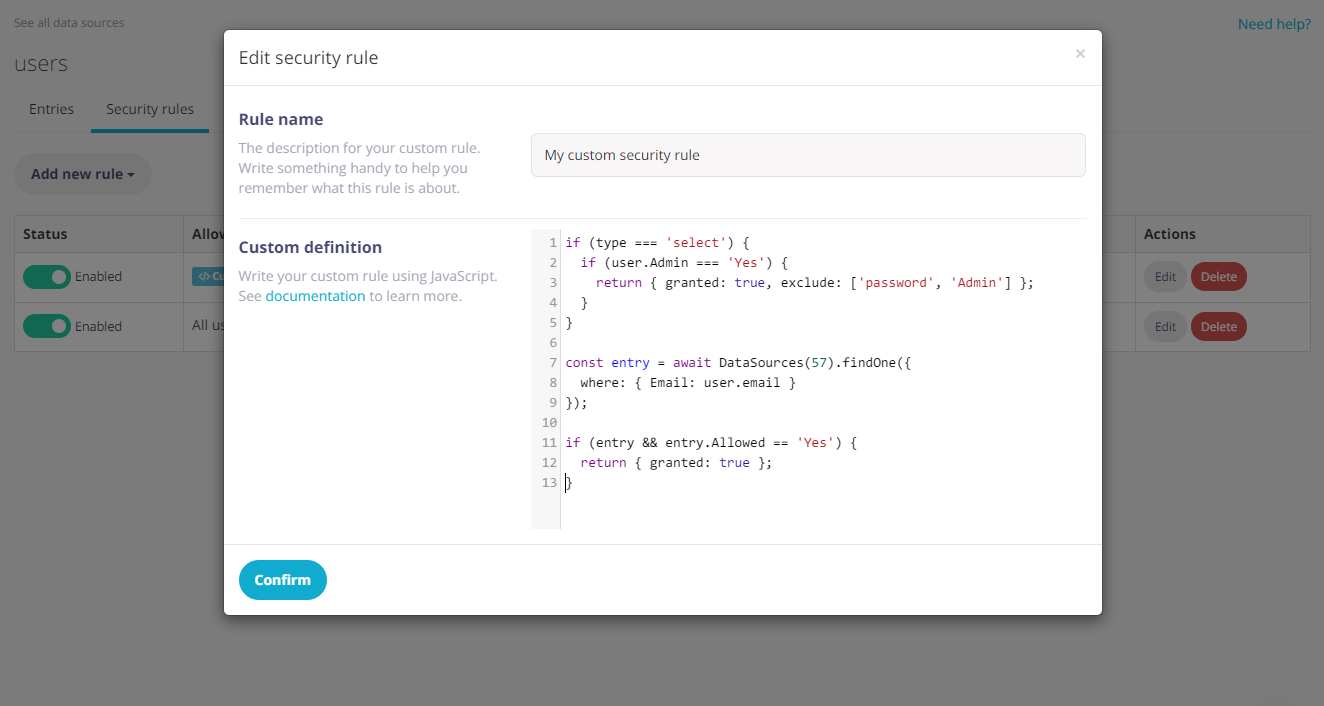
The custom security rule editor in Fliplet Studio displays a code editor where you write JavaScript that controls access. The rule name and enabled toggle appear above the code area.
Important: When a rule has a script, the script is the sole determinant of access. Standard rule fields like allow and type are ignored — the script runs regardless of login status or operation type. Your script must perform its own identity and operation checks (e.g., if (!user) return { granted: false };). If the script does not return a value (e.g., an unhandled operation type falls through without a return), access is denied by default.
When writing a custom rule, these variables are available in the script context:
type(String) — the operation the user is attempting:select,insert,update, ordeleteuser(Object) — the authenticated user’s session data, orundefinedif not logged in. For data-source passport sessions (e.g., Email Verification, Fliplet Login), this contains the flat column values from the user’s row in the authentication data source (e.g.,user.Email,user.Role). For SAML2 sessions, it contains the assertion attributes.session(Object) — server-verified login context withloggedIn(Boolean),passports(Array of passport type names),dataSourceIdandentryId(Numbers when the current identity is a data source login). For Studio preview, it is scoped to the previewed app. Guard missing values and bindsession.dataSourceIdto the intended login source when access depends on that source. This is not the client-writable session data fromFliplet.Session.set().query(Object or Array) — legacy request context. A truthy submittedwheretakes precedence over operation data and the request body. It does not prove that the route will apply those fields as a filter or write them as data. Do not use it to authorize constrained reads or writes: withoutwhere, arbitrary body fields can look like a valid filter even though the route reads without that filter.filter(Object orundefined) — a deep copy of the filter supplied by the query route at access validation. Use it to validate constrained reads. Routes that do not supply a filter, including direct reads by entry ID, leave it undefined; deny those paths when the rule requires a filter. Its values are client-controlled. Changing this copy does not rewrite the request. It describes the filter at validation, not the final database query after hooks; do not attach hooks that broaden or replace filters when relying on these examples.payload(Object, Array orundefined) — a deep copy of the operation data selected by the server for access validation. For individual inserts and updates it contains the proposed column values; query-based updates provide the update data separately from the filter. Commit inserts and updates provide arrays of flat column objects. Other operations may omit it; validate its presence and shape before use. Submitted values remain client-controlled. The copy is mutable, but changing it does not rewrite the operation or another rule’s payload. It reflects data at access validation, which can differ from the original request and from the final stored row after exclusions or hooks.entry(Object orundefined) — the existing entry for individual updates and each row of a query-based update, withid(Number) anddata(Object containing current column values). Commit updates do not provide a singleentry; do not infer stored ownership from their submitted payload arrays.DataSources(Function) — server-side library for reading data from other data sources. See Reading data from other Data Sources
Preview: The filter and payload contexts require the pending API release. Deploy rules using them only after that support is available in your region. Guard both with typeof checks to deny unsupported reads and writes on older APIs; never fall back to query.
For ownership checks on updates, compare authenticated identity with the existing entry.data, then validate the proposed payload. A submitted owner value does not prove ownership of the stored record. See the complete authorized AI tool example for a login-source binding and a narrow update rule.
This rule permits department-filtered reads, inserts with exactly Name and Department, and a Name update to an active record already in the user’s department. Set the login data source ID before use and remove any broader fallback rules. It denies deletes and array payloads. Query-based updates are checked per existing row, so several eligible rows can pass; rejecting arrays does not prohibit every multi-row operation.
const LOGIN_DATA_SOURCE_ID = 123;
const denied = { granted: false };
if (!user || typeof user.Department !== 'string' || !user.Department ||
    !session || !session.loggedIn || session.dataSourceId !== LOGIN_DATA_SOURCE_ID) {
  return denied;
}
if (type === 'select') {
  return { granted: typeof filter !== 'undefined' && !!filter &&
    typeof filter === 'object' && !Array.isArray(filter) &&
    Object.keys(filter).length === 1 && filter.Department === user.Department };
}
if (type !== 'insert' && type !== 'update') return denied;
if (typeof payload === 'undefined' || !payload ||
    typeof payload !== 'object' || Array.isArray(payload) ||
    typeof payload.Name !== 'string' || !payload.Name.trim() || payload.Name.length > 100) {
  return denied;
}
if (type === 'insert') {
  return { granted: Object.keys(payload).length === 2 && payload.Department === user.Department };
}
// Updates cannot change the stored department or activate another record.
return { granted: Object.keys(payload).length === 1 && !!entry && !!entry.data &&
  entry.data.Department === user.Department && entry.data.Active === true };
With fliplet-datasources loaded and a user logged into source 123 with Department: 'Engineering', these calls use a separate records data source (456). Record 789 must already have Department: 'Engineering' and Active: true for its update to succeed.
async function useDepartmentRecords() {
  const connection = await Fliplet.DataSources.connect(456, { offline: false });
  await connection.find({ where: { Department: 'Engineering' } });
  await connection.insert({ Name: 'New hire', Department: 'Engineering' });
  await connection.update(789, { Name: 'Updated name' }, { allowOffline: false });
}
useDepartmentRecords().catch(function(error) {
  console.error('Department operation failed:', error);
});
An insert for another department, an update containing Department or Active, and an update to another department’s stored row are denied. A body containing { where: { Name: 'Allowed' }, Name: 'Changed', Active: true } is also denied: the rule validates every key in payload, regardless of query.
Granting access
Return an object with granted: true to grant access. For reads, return an exclude or include array to restrict returned columns. include does not enforce a write allowlist; validate the exact keys and values in payload for narrow writes:
if (type === 'select') {
  if (!user) {
    return { granted: false };
  }

  // Grant full access to admin users
  if (user.Admin === 'Yes') {
    return { granted: true };
  }

  // Grant access to any other logged-in user, but hide sensitive columns
  return { granted: true, exclude: ['Phone', 'NextOfKin'] };
}

// No further access is granted by this rule to other operation types
Important: You must return an object — bare boolean values (e.g., return true) are not supported and will be treated as a denial. Always use return { granted: true } or return { granted: false }.
Validating submitted filters
Validate the route-supplied filter before granting constrained read access. A plausible value in legacy query does not prove the route will apply it. Mutating filter, query or payload is not a supported way to rewrite the database operation. Do not attach hooks that broaden or replace read filters after access validation.
This read-only rule requires exactly one literal Office filter matching the authenticated user. It denies missing filters, query operators, direct reads by entry ID and other operations. It requires the preview filter context described above and fails closed when that context is unavailable. Keep it as the only rule for this access path, or ensure other rules cannot grant broader access. For additional login-source restrictions, use the trusted session context described above.
if (!user || typeof user.Office !== 'string' || !user.Office ||
    type !== 'select' || typeof filter === 'undefined' || !filter ||
    typeof filter !== 'object' || Array.isArray(filter) ||
    Object.keys(filter).length !== 1 || filter.Office !== user.Office) {
  return { granted: false };
}
return { granted: true };
The app must submit the matching filter. Load fliplet-session and fliplet-datasources, replace 123 with the records data source ID and run after Fliplet is ready. The client value constructs the query; the security rule independently checks it against the authenticated user’s office.
async function readOfficeRecords() {
  const session = await Fliplet.Session.get();
  const account = session && session.entries && session.entries.dataSource;
  const user = account && account.data;
  if (!user || typeof user.Office !== 'string' || !user.Office) {
    throw new Error('Sign in with the app login before reading office records.');
  }
  const connection = await Fliplet.DataSources.connect(123, { offline: false });
  return connection.find({ where: { Office: user.Office } });
}
readOfficeRecords().then(console.log).catch(function(error) {
  console.error('Office records could not be read:', error);
});
For inserts, validate the supplied payload fields and reject unauthorized values. For updates, check the stored entry.data as well as payload. Use a supported server write mechanism when a value must be generated or changed on the server; do not depend on security-script assignment to persist it.
Checking data when committing changes
The data source commit operation evaluates security separately for inserts, updates and deletes. For inserts and updates, payload is an array of flat column objects. A commit update does not provide the existing rows through a single entry, so a rule that needs stored ownership must deny that shape unless it can independently verify the targeted records. Checking submitted owner fields alone is insufficient.
For explicit commit deletion IDs, the server can provide an array of existing row data. Other deletion paths can omit operation data. Do not assume payload is always present or always an array, and do not use query as a substitute.
This insert-only rule accepts a nonempty array of records with exactly Name and the authenticated user’s Department. It denies updates and deletes, which need separate authorization. Set the login source ID and use it only where those operations should remain denied. The rule also accepts an import’s insert batch with the same shape; it does not identify which endpoint submitted the batch.
const LOGIN_DATA_SOURCE_ID = 123;
if (!user || typeof user.Department !== 'string' || !user.Department ||
    !session || !session.loggedIn || session.dataSourceId !== LOGIN_DATA_SOURCE_ID ||
    type !== 'insert' || typeof payload === 'undefined' ||
    !Array.isArray(payload) || !payload.length) {
  return { granted: false };
}
return { granted: payload.every(function(data) {
  return !!data && typeof data === 'object' && !Array.isArray(data) &&
    Object.keys(data).length === 2 && data.Department === user.Department &&
    typeof data.Name === 'string' && !!data.Name.trim() && data.Name.length <= 100;
}) };
For an Engineering user, [{ Name: 'Alice', Department: 'Engineering' }] passes this insert check. An array containing a Marketing row, an extra field such as Role, or a missing name is denied. This validates the insert batch only; other operations in the same commit still require their own authorization. See the commit API for the request structure.
Reading data from other Data Sources
Custom rules can read data from other Data Sources using the find (multiple records) and findOne (single record) methods of the DataSources server-side library. These reads run at server level and bypass all security rules on the target data source.
Cross-data-source lookups add a database round-trip per request and are not cached. Keep queries efficient and use findOne when you only need a single record. Script execution has a 3-second timeout — if the script does not return within 3 seconds, access is denied. Async operations (like DataSources queries) are supported via await.
Connect using the data source ID (number) or name (string):
if (!user) {
  return { granted: false };
}

if (type === 'select') {
  const entry = await DataSources(123).findOne({
    where: {
      Office: user.Office,
      Managers: { $in: user.Manager },
      Country: { $like: '%United Kingdom%' }
    }
  });

  // Allow reading data if the user has a manager in the same office
  if (entry) {
    return { granted: true };
  }
}

if (type === 'insert') {
  const entries = await DataSources('Users').find();

  // Only allow writes as long as there are fewer than 10 entries in the target Data Source
  if (entries && entries.length < 10) {
    return { granted: true };
  }
}
find returns an array of matching entries (empty array if none match). findOne returns a single entry object, or null if no match is found.
Both methods accept the following properties:
where(Object) — query filter supporting standard query operators such as$eq,$ne,$like,$iLike,$gt,$gte,$lt,$lte,$inlimit(Number, defaults to100)offset(Number, defaults to0)
Use DataSources('Name') (data source name) instead of DataSources(123) (ID) in custom scripts. Data source names are preserved during app clone, so name-based lookups continue to work without manual remapping.